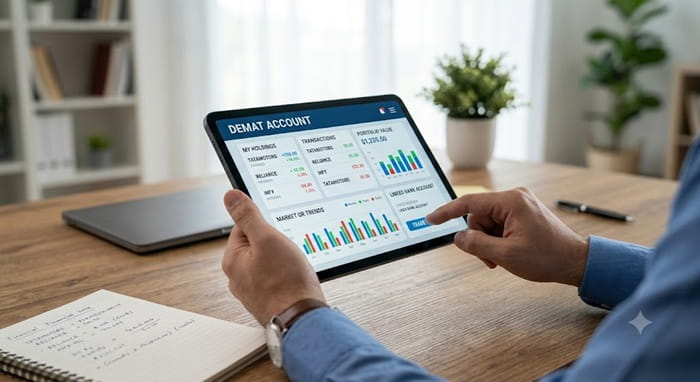
You’ve decided to file your taxes early this year, or maybe a bank asked for proof of your investments before approving a loan. Either way, you’re staring at your broker’s app wondering where exactly this statement lives. It’s one of those things everyone assumes is obvious until they actually need it in a hurry, and the download button turns out to be buried three menus deep.
The good part is that every major broker in India, from Zerodha to Angel One, offers this within their own app or web platform, and once you know where to look, it takes under two minutes. The steps differ slightly from broker to broker though, and that’s exactly what trips people up when they’ve switched platforms recently or help a family member manage their account.
Why the Process Differs Slightly Across Brokers
Every broker builds its own interface on top of the same underlying depository data, either NSDL or CDSL. That’s why the destination is always the same information, but the path to get there looks different depending on which app you’re using. Discount brokers like Zerodha and Upstox tend to keep this under a dedicated “Reports” tab, while bank-backed brokers like ICICI Direct or HDFC Securities sometimes nest it under a broader “My Account” section alongside other documents like contract notes and tax statements.
Knowing your broker’s DP, whether it runs on CDSL or NSDL, isn’t strictly necessary to download the statement, but it helps you understand why the layout or terminology might feel unfamiliar if you’ve moved from a bank-based broker to a discount one, or vice versa.
Downloading From Zerodha
Zerodha keeps this fairly straightforward through its Console platform rather than the Kite trading app itself.
Log into Console using your Zerodha credentials. Head to the Reports section, then look for Holdings or Statement depending on what you need. If you want a snapshot of current holdings, the standard holdings report works. If you need historical data across a specific date range, select the history report option, choose your dates, and hit submit.
You’ll get the option to either download the file directly or have it emailed to your registered address, which is handy if you’re doing this from a shared or work computer and don’t want the file sitting in downloads.
Downloading From Upstox
Upstox follows a similar logic to most discount brokers. Log into the app or web platform, go to Reports, and look specifically for the Holdings Statement option rather than the transaction or P&L reports, which sit in adjacent tabs.
Choose your reporting period, and the download typically completes instantly as a PDF. If you’re logging in for the first time in a while, Upstox may ask for OTP verification through your registered mobile number before letting you access reports, which is a standard security step rather than an error.
Downloading From Angel One
Angel One’s reports section sits on both the web platform and the mobile app dashboard, usually visible without much digging. Once you’re in Reports, holdings statements are listed alongside contract notes and other account documents.
One thing worth noting with Angel One specifically: users occasionally mention the interface feels a bit more cluttered compared to simpler apps like Upstox, so if you don’t spot it immediately, check under a secondary “Documents” or “Statements” heading rather than assuming it’s missing.
Downloading From Bank-Backed Brokers Like ICICI Direct or HDFC Securities
If you’re with a traditional bank-based broker, the path usually runs through “My Account” rather than a standalone reports tab. Log in, head to My Account or Profile, then look for Reports or Statements, and select the demat holding option specifically, since these platforms often bundle multiple report types, capital gains, contract notes, ledger statements, together in one place.
These platforms sometimes take you through their net banking-style interface, which can feel like an extra step compared to discount brokers, but the underlying download process works the same way once you find the right menu.
Choosing Between PDF and Excel
Most brokers give you a choice between PDF and Excel formats when downloading. PDF works well if you just need a record for submission, say, to a bank or for personal reference. Excel becomes more useful if you’re planning to actually work with the data, cross-checking quantities, calculating average purchase prices, or feeding it into a spreadsheet for portfolio tracking.
If your broker only offers one format by default, most platforms still let you request the other through their Reports section by selecting a dropdown before the final download step.
What to Do If the Statement Doesn’t Match What You Expect
Occasionally, the downloaded statement shows a different holding quantity than what you see on your dashboard, especially right after a recent trade. This usually comes down to settlement timing. Trades take a day or two to reflect fully in your demat holdings, so a statement pulled immediately after a purchase might not show the new shares yet.
If the mismatch persists beyond the usual settlement window, it’s worth reaching out to your broker’s support directly rather than assuming the statement itself is wrong, since the depository record is the final word on what you actually hold.
Frequently Asked Questions
Q. Can I download a demat statement for a specific past date, not just the current one?
Yes, nearly every broker platform lets you select a custom date range or a specific historical date when generating the report, which is particularly useful for reconstructing old holdings during tax filing.
Q. Do I need to pay any fee to download my demat statement from my broker?
No, downloading your own holding statement through your broker’s app or website is free. There’s no charge for viewing or downloading your own account records.
Q. Why does my broker’s statement look different from the one I get from NSDL or CDSL directly?
Your broker’s statement is usually formatted for readability within their platform and may show additional details like current market value alongside quantity. The NSDL or CDSL version tends to be more standardised across all brokers since it comes straight from the depository.
Q. I switched brokers recently. Can I still download statements from my old broker?
Generally yes, as long as your account with the old broker isn’t fully closed. If it’s been closed, you’ll need to rely on the CAS from NSDL or CDSL instead, since that pulls historical data linked to your PAN regardless of which broker you’re currently active with.
Q. My broker’s app shows an error when I try to download the statement. What should I try first?
Start by checking if you’re logged in with the correct, updated credentials and that your session hasn’t timed out. If the error persists, try switching between the mobile app and web platform, since some brokers have occasional glitches on one interface that don’t affect the other, and if it still fails, contacting broker support is the quickest fix.